Questions
Click each question to jump to its answer below.
Answers
How do I set up scoring so students earn some credit for selecting correct answers, but lose credit for choosing incorrect answers?
Set the question score type to be partial credit. This will give students partial credit for choosing one of the correct answers.
For the incorrect answers, AFTER you fully grade the exam go to the Grade Submissions window. Click on the question number to open its grading rubric. The rubric that Gradescope created when grading shows just answer combinations that students gave on their bubble sheets. Click on a rubric item to adjust its score to match what it should be if you include your penalties. Students who selected the answer combination given in each rubric item will have their scores updated. See the image and description below for an example of the default scoring rubric (made by Gradescope) and an updated rubric for a question with penalties.
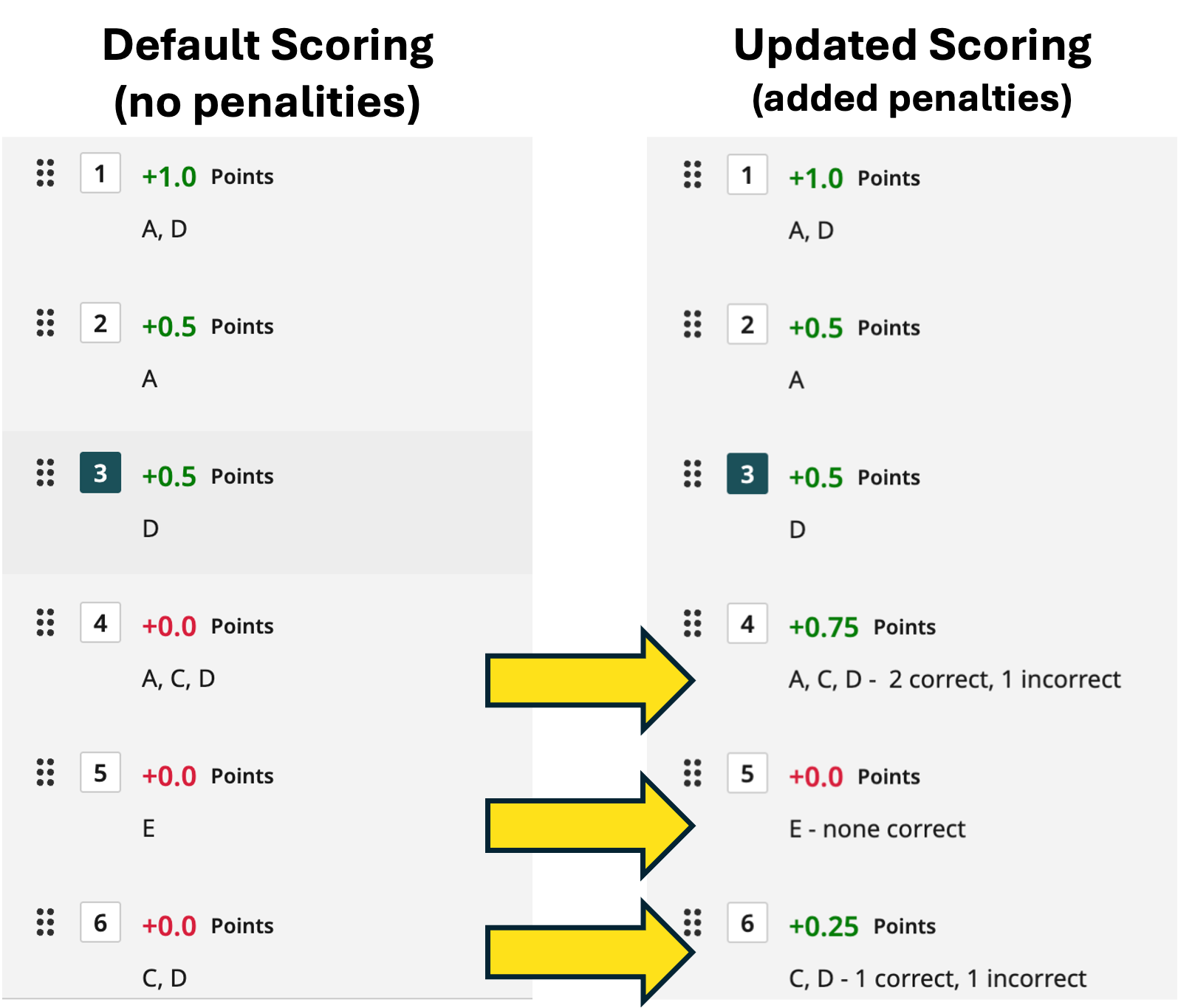
This question was worth 1 point and selecting answers A or D earned 0.5 points each (full 1 point for both). This is reflected in the first three rubric items. They do not needed updated.
We want to add a 0.25 point penalty for each incorrect answer chosen. We can also note that in rubric items four and six, students did choose some correct answers, but also some incorrect ones. They did earn any credit for the correct ones (any incorrect choice results in 0 points by default in Gradescope). For items four, five, and six their scores have been updated to reflect our grading plan (and their description were updated to be clear how they were scored).
- For item four, both correct answers (A and D) were chosen, but one incorrect answer (C) was chosen. So the score for this is +0.5+0.5-0.25 = 0.75 points.
- For item five no correct answers were chosen (only incorrect answer E was chosen). It's score should be -0.25 points, but we've just left it as 0 points.
- For item six, one correct answer (D) and one incorrect answer (E) was chosen. So the score is +0.5-0.25 = 0.25 points.
Unfortunately there is not a simpler way to set up credit-and-penalty scoring for Bubble Sheets in Gradescope. You have to manually update grading rules. But, at least, the rubric only has answer combinations that some students actually gave. You don't have to write different rules for every possible combination.
Why does the Review Scores page show some students with a score of 0 and a question mark listed as their version?
The student forgot to put an exam version on their exam form, or Gradescope couldn’t understand what they marked for their exam version. See the next question for how to fix this.
How do I set an exam's version if a student did not fill in their exam version on their bubble sheet?
Gradescope labels these exams as uncertain versions (this may also happen if Gradescope cannot interpret what students marked for their exam version). On the Manage Submissions page of your assignment, there should be a big red circle with a number that shows how many uncertain versions there are, as shown below.
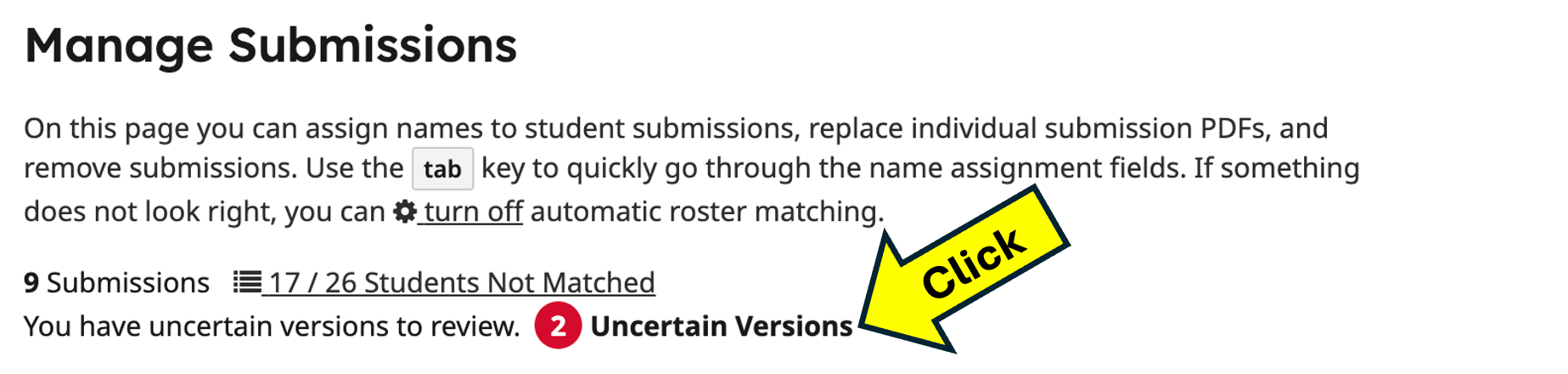
Click where it says uncertain version (the text is a link), as labeled in the image. The review window that opens shows what students marked in their Version box and what score they earned when grading their exam with each version’s answer key.
- If it is clear to you what version was marked, click the box under the image to tell Gradescope which version to grade with.
- If it is unclear what version was marked, you have to decide what version to grade with. For example, you could just choose the version where the student earned the highest score.
Can I use a bubble sheet for a multiple-choice section of my exam and but still have other question types in another section?
You can, but Gradescope can’t directly manage them for you.
In Gradescope, treat each section as as a separate assignment. One assignment is just the bubble sheet section. The other assignment is a quiz/exam assignment with the rest of your questions. Grade assignment each separately.
After grading, you could add the scores to Canvas in two ways.
- Create one Canvas assignment for the exam. Add together the two assignment scores in Gradescope and input them to Canvas. This method is nice as it shows one overall score for the exam, but it requires some work to combine scores from the two assignments.
- Create two Canvas assignments and link each one to one of the Gradescope assignments. Import the grades for each assignment into Canvas from Gradescope. This method is nice as it easily imports grades to canvas, but it's a little weird to have to scores for one exam.
Some faculty have approached this problem by printing just the first page of the bubble sheet template and then on the back printing a template for space for students to give answers to the other questions on the exam (for example, spaces for fill-in-the-blank or space to write short answer responses). When scanning the answer documents, scan the bubble sheet side of the exams and, separately, scan the back side of the answer page. This will create two pdfs, one for each section, to upload to your two different Gradescope assignments.
