
In the case of an IT incident, Canvas may become unavailable. You can check the Alert Blog and service status website to find updates when Canvas is having an outage at UO.
This page offers specific guidance on the following topics for continuing your teaching plans if Canvas is unavailable:
- Communicating with Students
- Sharing Course Materials
- Running Classes
- Collecting Student Assignments
- Replacing Canvas quizzes
- Planning for Future Outages
Facing challenges or questions that aren't answered here? Reach out to TEP and UO Online to consult with them on strategies for managing your course while Canvas is unavailable.
Communicating with Students
Communicating with your students about your plans until Canvas is back up is critical. Rather than using Canvas Conversations or course announcements, you will need to email your students. Try to send them an email as soon as you have a plan, or even a partial plan. Students may not have your email address readily available, particularly if you rely on Canvas messaging, so sending the email will ensure they can also contact you if needed.
- You can download your class roster (with email addresses) from Duckweb. View instructions for downloading your class roster from Information Services. The file (spreadsheet type) that can be downloaded includes student emails. You can copy the column and paste them into an email to contact all your students.
- If you have GEs for your course who communicate with students, make sure they have access to class rosters as well.
- In Microsoft Outlook, you can create contact lists. If you create a list with all of your students' email addresses, you can easily send a message to everyone on the list, and avoid adding each student to every email manually.
- Use the BCC line for students' email addresses and send the email "to" yourself. Using the BCC line hides the full list of recipients when someone opens the email, which helps protect student privacy and shortens email headers so students can get to the information more easily.
- Microsoft prevents you from contacting more than 500 people in one email. If you have more than 500 students, you will need to send your message twice to different subsets of students.
- Include your course subject and number at the start of your subject line. Students will likely receive messages from many of their instructors, so having the course name at the start will help students easily identify it.
- Avoid generic subject lines. A student's inbox with four emails from different classes all titled with variants of "Canvas is (still) down" isn't particularly easy to navigate. Be specific with what information is in the email in your subject line. "English 317 - Submitting Your Essay" is easy to identify in their inbox when students want to find that information.
Sharing Course Materials
Students (and you!) rely on Canvas to store course materials. Without Canvas, you will need to share the materials directly with students. This might include course readings, directions for assignments, your syllabus, etc.
- You can attach necessary materials to emails that you send students.
- If you need to share many files, sharing materials in a digital folder may be easier for students (and you) to manage. You can add files as needed and students have just one place to look for what they need, rather than hunting through email.
- Carefully name your files so that students can quickly find what they are looking for. Simple names without unnecessary context or symbols are best. "Pre-Class Reading - Monday Week 8.pdf" is easier for students to parse than "JonesAndThompson_2014_WelfareLegislativeHistory.pdf".
- UO offers a few different file sharing tools. Which should you use? See information on all UO's file storage tools from Information Services.
- You can set up a Microsoft Teams channel for your course and share files through it. View instructions from information services for setting up a Microsoft Teams Channel for your course. Teams also has additional functionality that could be useful for a course beyond just sharing files with students.
- If you want to use OneDrive, see instructions from Information services on Getting Started with OneDrive and a page from Microsoft for sharing OneDrive files and folders.
- If you want to use Dropbox, see instructions from Information Services on Getting Started With Dropbox and Managing file access in Dropbox.
- If you want to use Sharepoint, see instructions from Information Services on Getting Started with SharePoint and Microsoft's instructions for sharing files with Sharepoint. Do note that in Sharepoint it can sometimes be challenging to manage file access permissions, so it may not be the best tool for this moment.
Running Class
- Faculty teaching in-person sections: you can continue as normal! If you use Canvas during class, you may need to adjust plans for those portions of your class. Reach out to TEP and UO Online for support with making that switch.
- Faculty teaching synchronous online sections: classes can still be held via Zoom or Teams, even outside of Canvas. Email a direct link to the Zoom or Teams session to your students.
- Faculty teaching asynchronous online sections: Communicate with your students via email; do not assume that students in asynchronous courses will be able to pivot to meet synchronously.
Collecting Assignments
Email your students and give clear instructions about what to do about assignments that are due while Canvas is down. This might include:
- Extending the due date until shortly after Canvas is back up. Still encourage students to complete the work before the normal due date so that work for your class (and others) does not pile up. When Canvas is back up, give students a reasonable time to submit their completed work and announce the new submission deadline. Do keep in mind that students may not be continually refreshing their inbox to submit work the moment Canvas is up.
- Inviting students to email you their work. Encourage them to use a specific email title format to help you easily identify and sort their emails. "ASTR 123 Project 3 - LastName" will jump out at you when you scan you inbox to find student emails.
- Quickly set up a Microsoft Form for students to submit work through. View instructions for setting up a Microsoft Form for assignment submissions.
- You only really need two questions - a student's name and a space to upload their assignment.
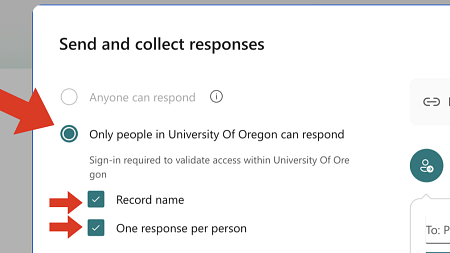
- In the "collect responses" settings, select the option to only allow people at UO to respond.
- Rather than try to copy your assignment instructions into the form, instead include the instructions with the email you send to students with the submission link. The form is just the method for submitting the assignment; its instructions can be in another, easier to create, format.
- Have students add assignments to an upload-only Dropbox folder. They can add their work, but cannot see the content of the folder (so their classmates' work is hidden). View instructions for setting up an upload-only Dropbox folder.
Replacing Canvas Quizzes
If you do not have a local, saved copy of your quiz, you will not be able to access Canvas to retrieve it until it is secure. You can re-create the quiz or consider shifting to an alternative assessment, such as a written reflection, a class discussion, or a small-group problem-solving activity.
If you do have a local, saved copy of your Canvas quiz:
- For an in-person class, you could print the quiz and have students take it by hand. If the quiz is short, you can project a slide and have students fill out an answer sheet (print or digital).
- If your class is online (or if the in-person alternatives won't work for your class), you could replicate the quiz in Microsoft Forms. View Microsoft's instructions for creating a quiz in Forms. After designing your quiz questions, in the "Collect Responses" settings, we recommend
- selecting the option to only allow people at UO to respond (students will have to be logged in with their UO account),
- recording student names (for safety, also include a question that asks for a student's name), and
- limiting the number of times a person can respond (if you do this in your Canvas quiz).
Planning for Future Outages
An unexpected Canvas outage is particularly challenging if you don't have material from Canvas backed up in another place. For example, you might have not have quick access to a reading you've shared on Canvas or your quiz questions in Canvas have evolved but your external copies are years old. This is very common as faculty develop or add new material in Canvas, import it to a later course, but don't update copies they keep for themselves.
Backing Up Student Grades
During a term, it can be useful to download a local copy of your course Canvas Gradebook after major assignments, or other timely moments in your course. The file can be stored just for your records in case Canvas becomes unavailable when you need those grades. The backup, of course, won't have assignments graded after you downloaded it, so trying to make a habit of downloading a backup regularly to keep them more up to date.
Backing Up Canvas Pages & Assignment Instructions
You can download a Word document version of your Canvas pages and assignment instructions using Pope Tech's Alternative Formats feature. This feature primarily exists to improve digital accessibility in Canvas, but we can use it to export pages you've created in Canvas to Word Documents saved on your computer. Doing this at the end of a term ensures you have a record of content you've put into Canvas and instructions for assignments.
Some warnings:
- If your instructions or pages have links in them, the links will appear in the Word Document. If the links are to other Canvas pages or files in Canvas, they will go to the material in Canvas which may not be helpful if Canvas is unusable. If the links go to external webpages, they should work okay.
- This tool does not include an assignment's rubric, if you've built it into Canvas for use in SpeedGrader. If you write out the rubric in an assignment's instructions, that will be remain in the instructions.
- If you use this tool for quizzes, it will only download the instructions for a quiz - not its questions.
Backing Up Materials Uploaded into Canvas
You can download individual files or entire folders from a Canvas course to ensure they don't only exist in Canvas. This will download any files that you've uploaded to Canvas (or imported from an older Canvas site for the course). Doing this at the end of a term ensures you have the materials on-hand for the future.
Backing Up Quiz Questions or Your Question Bank
There is not an easy way to backup your quiz questions or question bank for use in another format. You cannot just export quiz questions as a Word document, for example. You will have to copy-and-paste the question text from Canvas into another format (for example, into Word).
You can back up your question bank as part of a full course backup, but the back file is not in a format that can readily used in a non-Canvas format.
Backing Up Entire Courses
You can also can backup and download entire courses to keep for your records. These backups can be imported later into another Canvas course shell, but generally cannot be opened outside of Canvas. So you cannot, for example, directly extract quiz questions from a saved backup file to re-create a quiz in another format. The backups do not include student work or grades. See Canvas's instructions to export the entire course as a downloadable package and learn more about best practices for records management of course materials from Information Services.