If you need to quickly designate a space for students to upload files, you can create an upload-only folder in Dropbox (Dropbox calls this a File Request). Students can add work to the folder, but won't be able to see other work added to the folder.
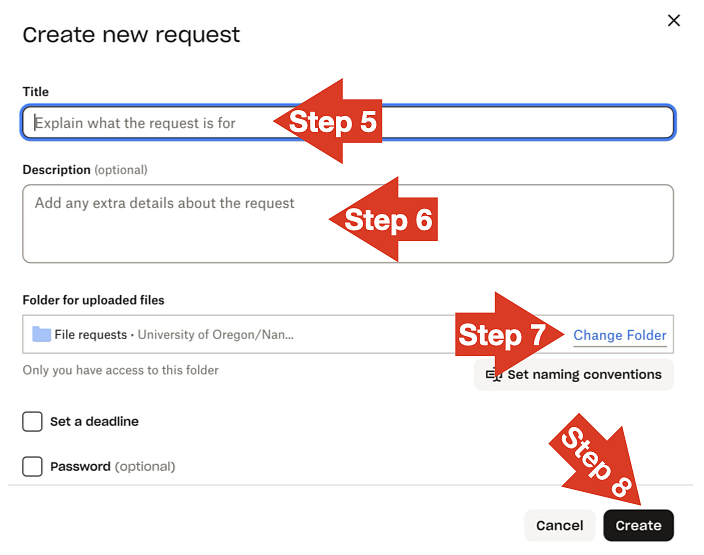
When students upload work, they will be prompted for their name and email when uploading. To change these settings, click Set Naming Conventions in the request settings (see steps 5-8).
Find more ideas for student submissions on our Teaching During a Canvas Outage page.
Instructions
- Go to dropbox.com
- Login with your UO email address. You'll be redirected to UO single-sign-on. All UO faculty have access to Dropbox.
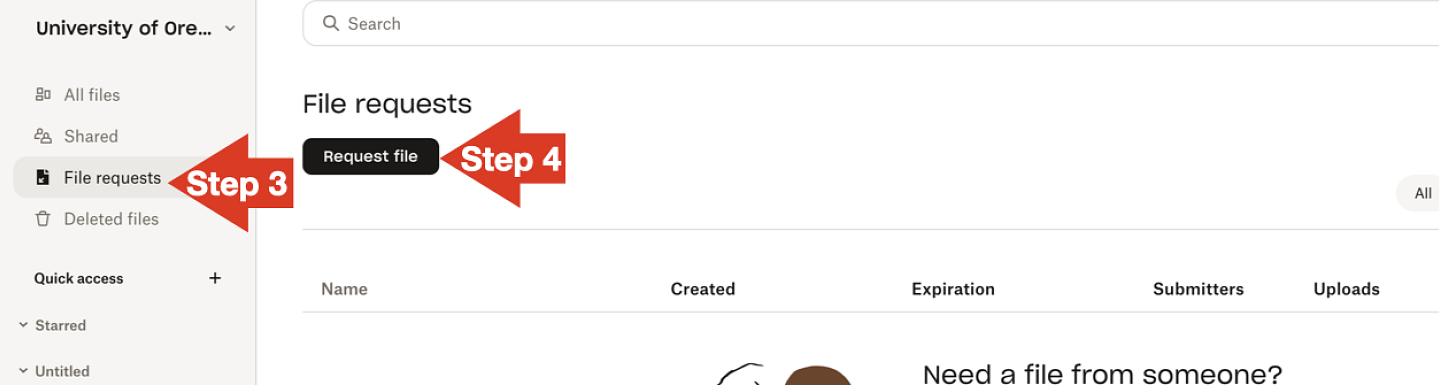
- In the left sidebar, click File Requests to open your File Requests list.
- In the main window, select the Request File button.
- When the Create New Request window opens, enter your title. This becomes your folder name by default.
- Optionally add a description. Put assignment details here. A due date for your instructions is probably sufficient. We recommend not trying to add all of the assignment instructions to the form. Instead, include the instructions for the assignment in another format when you share the link to the Microsoft Form with your students.
- You can click the "Change Folder" button to adjust where your new folder will be. If you don't change it, it should appear in a "File Request" folder in your top-level Dropbox folder.
- Click Create to make your folder!
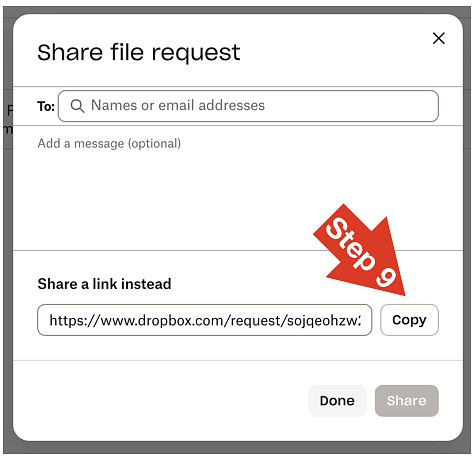
- After creating your folder, a Share File Request window may open. Click the Copy link button to get the link to your file to send to students. We encourage you to share the link to your form with with students through a direct email from you, rather than ask Dropbox to email students automatically.
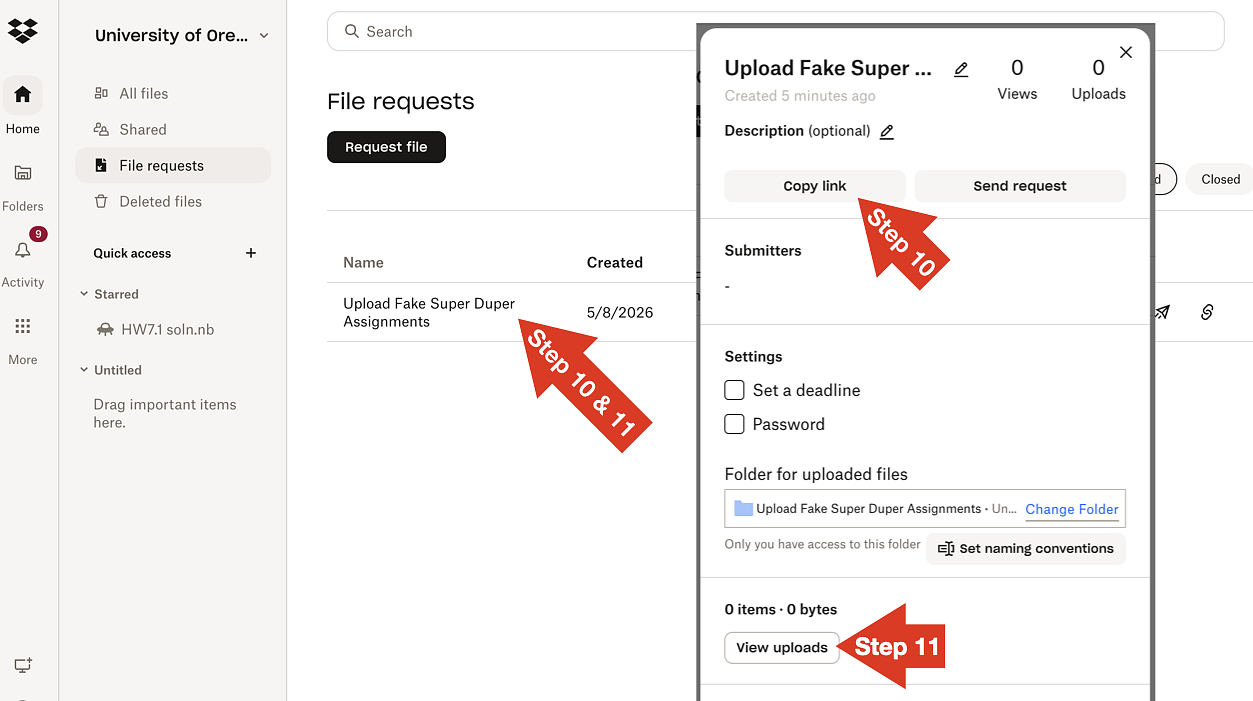
- You can also get the link by on the assignment in your File Requests list and then clicking the "Copy Link" button.
- To view files students submit, you can navigate to it in your normal dropbox folders list. Unless you changed it in step 7, a folder for this assignment should be in your top-level Dropbox folder. You can also double click the folder in your File Requests list and then click the "View Uploads" button to jump right to the files.