
Linking A Canvas Course to Gradescope
Linking A Canvas Course to Gradescope
These instructions come from Gradescope's Using Gradescope with Canvas as an Instructor page, amended to align with UO's implementation of Gradescope.
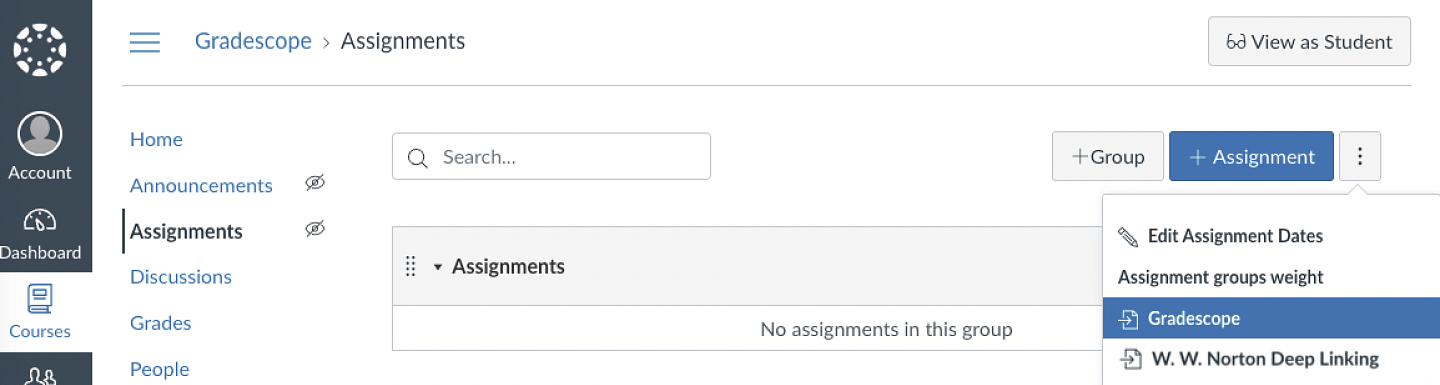
- In Canvas, access your course and then select Assignments from the course navigation menu.
- From the three-dotted drop-down menu in the top right corner, select the Gradescope link.
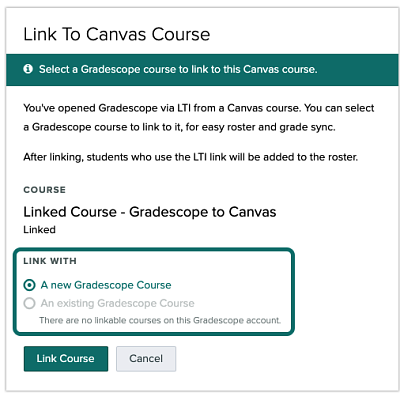
- Once Gradescope launches, you'll see a dialog box with course-linking options. Choose to link to a new or existing Gradescope course, and then select Link Course to go to the Course Settings page.
- New Gradescope users: At this point, a new Gradescope account will be created for you if you do not already have one associated with the email address (e.g., your school email) that you use in Canvas.
- Existing Gradescope users: If you already have a Gradescope account under the email address that's associated with your Canvas account (e.g., your school email), a new Gradescope account will not be created for you, and selecting the Gradescope link in Canvas will take you to your existing account.
- On the Course Settings page, you can update the course title, description, rubric types, and score bounds. Keep in mind that course title and description changes made here will only appear in Gradescope, not in Canvas.
- When you're finished, select Update Course. Your course is now linked, and your students can access this Gradescope course.